
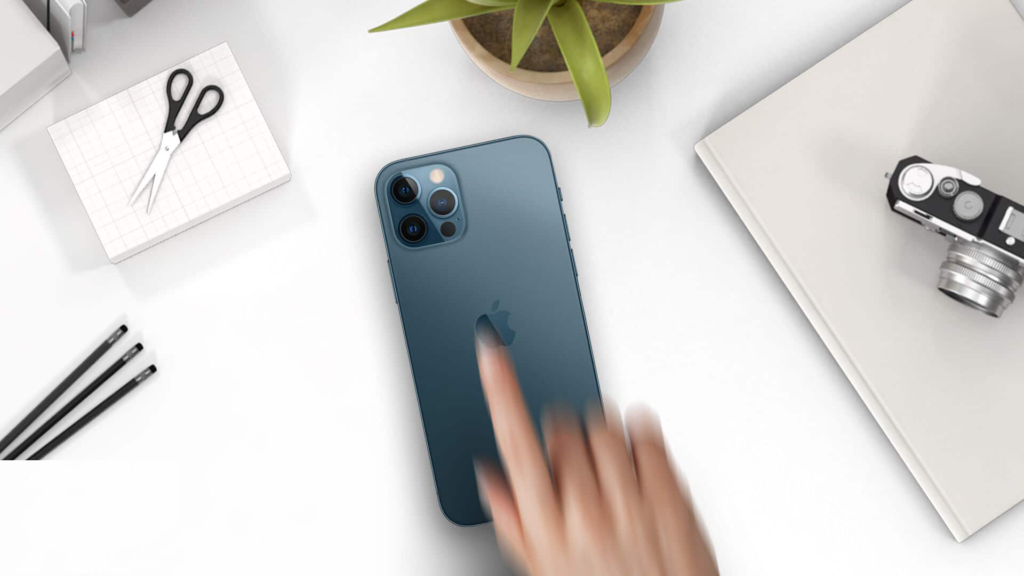
Many iPhone users proudly display their device’s Apple logo, often unaware that this iconic symbol is more than just branding. It actually functions as a secret, customizable button, allowing you to assign various tasks and actions.
While this might come as a surprise to many, the truth remains: the Apple logo on the back of your iPhone possesses a powerful, hidden capability waiting to be unleashed.
Unlock Your iPhone’s Hidden Back Tap Feature
Known as the ‘Back Tap’ feature, Apple first introduced this innovative functionality with the pilot release of iOS 14 in 2020, followed by its official launch in 2021. This clever accessibility tool transforms the Apple logo on your iPhone’s back into a versatile button. By simply tapping the logo two or three times, you can trigger up to two different pre-assigned actions, making frequently used features incredibly easy to access.
The Back Tap feature is conveniently located within your iPhone’s Accessibility settings and is disabled by default. Once enabled, you gain the ability to select from a wide array of options, which can be activated by either a double-tap or a triple-tap on the Apple logo.
Explore the numerous actions available for the Back Tap feature:
- Accessibility Shortcut
- App Switcher
- Camera
- Control Center
- Home
- Lock Rotation
- Lock Screen
- Mute
- Notification Center
- Reachability
- Take Screenshot
- Shake
- Siri
- Spotlight
- Torch
- Assistive Touch
- Background Sounds
- Classic Invert
- Color Filters
- Magnifier
- People Detection
- Smart Invert
- Speak Screen
- Voice Over
- Zoom
- Zoom Controller
- Volume Up / Down
- Scroll Up / Down
Beyond these standard options, the Back Tap feature also integrates seamlessly with Siri Shortcuts. This allows for even more personalized actions, such as initiating calls to loved ones, sending messages, or triggering any custom automation you’ve created. Once your Siri Shortcut is set up, you can easily assign it to either the double-tap or triple-tap gesture on your iPhone’s back logo.
Enabling and Disabling the iPhone Back Tap Feature
The Back Tap functionality cleverly leverages your iPhone’s built-in gyroscope and accelerometer sensors to accurately detect the tapping gestures on the device’s back.
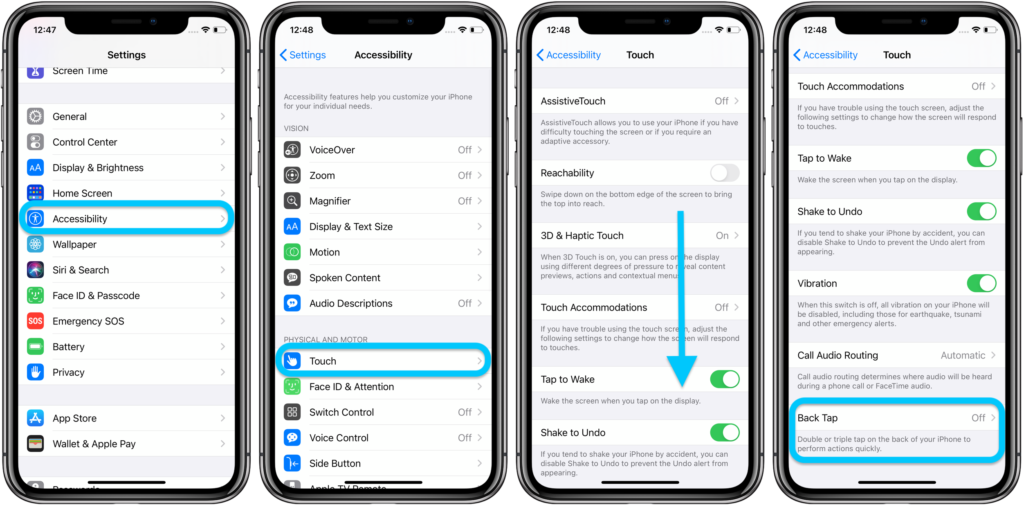
Accessing and configuring the Back Tap feature is straightforward. Simply follow these steps:
- Open the Settings app on your iPhone.
- Scroll down and tap on Accessibility.
- Under the “Physical and Motor” section, tap on Touch.
- At the very bottom, select Back Tap.
- Choose Double Tap and select the desired shortcut or action you wish to trigger when you double-tap the Apple logo.
- Go back to the previous “Back Tap” screen (tap “Back Tap” at the top left).
- Select Triple Tap and choose a different shortcut or action for when you triple-tap the Apple logo.
You’re all set! Your iPhone’s Apple logo is now configured to respond to your taps, executing your chosen actions effortlessly.
Related Articles and Insights
The Back Tap feature doesn’t require specialized new hardware, making it accessible to a wider range of devices. It functions flawlessly with iPhone 8 models and all subsequent releases. While iOS 14 itself supports devices from the iPhone 6s upwards, including the first-generation iPhone SE, the Back Tap feature specifically requires iPhone 8 or newer models due to their more advanced sensor capabilities.
Does Back Tap Function with an iPhone Case On?
Apple engineered the Back Tap feature to be highly responsive, even when your iPhone is protected by a standard, slim back case. However, the functionality may be compromised or entirely inactive with thicker, heavier cases, especially those with intricate designs or built-in stands. For optimal performance, ensure there’s sufficient clearance and minimal obstruction around the Apple logo when using a phone case.
Important Note: If your iPhone is in a case, simply be aware of the Apple logo’s general location on your device. For instance, on the iPhone 11, 12 models, and iPhone 13 models, the logo is centrally located on the back. In contrast, for the iPhone XR, it resides in the upper third of the device. Regardless of precise logo placement, Back Tap is generally designed to work with taps anywhere on the back of your iPhone.
Join our community by subscribing to our Weekly Newsletter to stay updated on the latest AI updates and technologies, including tips and how-to guides. Also, follow us on Instagram (@inner_detail) for more updates in your feed.
For more such interesting informational, technology, and innovation content, keep reading The Inner Detail.
