
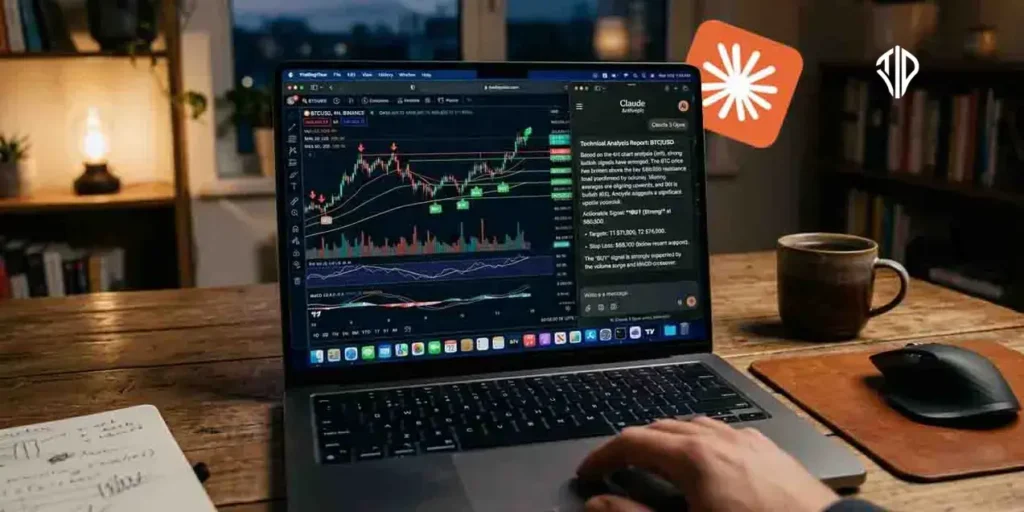
The intersection of artificial intelligence and financial trading has reached a tipping point. For a long time, traders attempting to use AI for chart analysis had to rely on a clunky, inefficient process: taking a screenshot of a chart, uploading it to an AI chatbot, and waiting for an analysis.
By the time the AI processed the image, the market had already moved, rendering the insights useless. Furthermore, interpreting pixels is prone to errors, and in trading, a small discrepancy can be the difference between a profitable trade and a painful loss.
Today, that paradigm has completely shifted. Thanks to the introduction of Claude Code, Model Context Protocol (MCP) servers, and direct API integrations, Claude AI is no longer just a chatbot—it is an active, live-wired trading assistant that lives directly inside your terminal.
You can now connect Claude directly to TradingView to read live candlestick data on a code level, build custom PineScript indicators out of thin air, and even link it to brokerages like Zerodha to manage your live portfolio. However, you need a paid subscription of Claude to access the Claude Code for connecting it to TradingView.
If you are not wiring up these AI agents to encode your trading strategy into automated systems, you are competing at a massive disadvantage. This comprehensive guide will walk you through exactly how to connect Claude to TradingView, how to use it to build backtestable trading strategies, and how to integrate it with your live portfolio for real-time insights.
Key Takeaways
- Live Code Integration: Claude now uses Chrome DevTools Protocol (CDP) to read live TradingView data at the DOM level, ensuring mathematical precision over static screenshots.
- Algorithmic Strategy Control: By using a rules.json file, traders can define complex entry, exit, and risk management parameters that the AI executes autonomously.
- Automated PineScript Development: Claude can write, apply, and auto-debug PineScript version 6 code directly on your charts, bridging the gap between strategy ideas and technical execution.
- Full Portfolio Visibility: The Zerodha Kite MCP integration allows for secure, read-only analysis of live holdings and performance via natural language.
1. The Revolution: Reading Live Code Instead of Static Screenshots
To understand why integrating Claude with TradingView is so revolutionary, you must understand how it operates under the hood. When you upload a screenshot to an AI, the model is essentially guessing; it tries to interpret a static array of pixels.
The TradingView MCP integration changes this completely. Every webpage and desktop app built on web technologies has an underlying code structure (the DOM) that updates dynamically. If you right-click a browser and hit “Inspect,” you see the live code.
The Claude TradingView integration utilizes the Chrome DevTools Protocol (CDP) to allow Claude to read this live data directly from your TradingView screen.
This means Claude knows the precise, mathematically exact pricing of every single candle on the screen—from the top to the bottom, including the wicks—and it watches these changes happen live. Whether you are trading on the one-minute chart or the weekly chart, Claude is interpreting natural language prompts and marrying them with the raw, live market data executing in the backend.
2. Connecting Claude to TradingView: Step-by-Step Setup
Setting up Claude to act as your live TradingView assistant requires utilizing Claude Code, Anthropic’s terminal-based AI coding assistant. This allows the AI to act autonomously on your machine.
Step 1: Prepare Your Environment
First, ensure you have Claude Code installed and authenticated in your terminal. You must also have the TradingView Desktop App (not just the web browser version) installed.
- Essential Requirement: The desktop app is necessary because it allows for “Remote Debugging,” which is the “bridge” Claude uses to read chart data.
- Pro Tip: Close any currently running instances of TradingView before proceeding to the next step.
Step 2: The “One-Shot” Automation
The most efficient way to connect them is using a “one-shot” setup prompt. Open your terminal, launch Claude Code, and paste a prompt similar to this:
"Install the TradingView MCP server from GitHub (tradesdontlie/tradingview-mcp), run npm install, add it to my MCP config at ~/.claude/.mcp.json, and prepare to launch TradingView with the debug port."What happens here: Claude Code will autonomously clone the necessary bridge (the MCP server), update your hidden configuration file (.mcp.json), and install the dependencies. It will ask for permissions to edit your files—type “y” or allow it to proceed.
Step 3: Launching with Remote Debugging
For Claude to see your charts, TradingView must be launched with a specific “port” open (9222). You can do this manually, but the integration usually provides a command.
- The Command: In the terminal where Claude Code is running, type: tv_launch (or follow the specific path command Claude provides).
- Manual Fallback: If the auto-launch fails, you may need to launch it via terminal manually:
- Mac: /Applications/TradingView.app/Contents/MacOS/TradingView –remote-debugging-port=9222
- Windows: Start-Process “TradingView.exe” -ArgumentList “–remote-debugging-port=9222”
Step 4: Health Check and “Live” Confirmation
Once the app opens, you need to verify the link. Type the following into your Claude Code terminal:
tv_health_checkIf successful, the terminal will return a JSON response confirming cdp_connected: true and identify the ticker currently on your screen (e.g., BTCUSD). You will see a confirmation message that the “CDP is live.” You can now use natural language like: “What is the RSI on this chart?” or “Write a Pine Script for a 200 EMA and add it to this chart.”
3. Defining Your AI Strategy with Rules.json
Controlling the visual chart is impressive, but the true power of this integration lies in algorithmic trading. Once connected, Claude utilizes a file called rules.json. This file acts as the “brain” of your trading strategy, housing all your specific rules for entering longs, entering shorts, exiting trades, managing risk, and defining timeframes.
Instead of manually writing this JSON file, you can simply talk to Claude. For example, you could prompt Claude with:
"I want you to research the day trading strategy of [Specific Famous Trader], focusing on the moving averages they use, such as the 21, 50, and 200 EMA, and their MACD and RSI settings. Update my rules.json file with all of this information and implement these rules onto my Bitcoin chart."Claude will autonomously browse the web, compile the requested strategy parameters—such as RSI bounds between 35 and 58, and bullish MACD crossovers—update the rules.json file, and prepare to execute this logic on your chart.
4. Translating Ideas into PineScript: Indicators vs. Strategies
To visualize these rules on TradingView, the logic must be converted into PineScript, TradingView’s native coding language. Before doing this, it is crucial to understand the difference between an Indicator and a Strategy:
- Indicators: An indicator is a set of rules that produces visual outputs on the chart, such as lines, buy/sell signal markers, or colored zones. It helps you interpret the market, but it cannot be used to generate backtested trade logs directly within TradingView.
- Strategies: A strategy goes a step further. It includes strictly defined entry and exit conditions. Strategies allow you to run TradingView’s backtesting engine to see historical profitability, win rates, and drawdowns.
Building a Custom Indicator
When prompting Claude to write code, always explicitly specify that you want the code written in PineScript version 6, as it is the latest version and avoids legacy compatibility issues. For instance, you might prompt: “Help me code a smoothed Heikin-Ashi candlestick indicator for TradingView in PineScript version 6.” Claude will generate the code; you simply paste it into the Pine Editor.
Auto-Debugging Code
One of the most powerful features of using Claude Code connected via MCP is its ability to auto-debug. If the generated PineScript has a compilation error, Claude Code—because it is reading the live TradingView interface—can literally see the error message. It will autonomously rewrite the code, fix the issue, and re-apply it to the chart until it is resolved.
Converting to a Backtestable Strategy
Once you are happy with the visual indicator, you can transition it into a backtestable strategy by telling Claude: “Convert this indicator into a strategy. Give me input options for long-only, short-only, and both. Close a long trade when a bearish flip occurs.”
5. Automating the Workflow: The Morning Briefing
Checking dozens of charts manually every morning is a relic of the past. With Claude Code wired into TradingView via the MCP (Model Context Protocol), you can automate your entire daily analysis by providing Claude with a specific watchlist and a set of logic.
Custom Strategy Execution: You can instruct Claude: “Apply my ‘EMA Cross’ strategy to my crypto watchlist (BTC, ETH, SOL, XRP, LINK).” Claude will systematically cycle through every asset on your TradingView screen, read the live candle data (wicks, bodies, and timeframes) at a code level, and determine the status of each asset without you clicking a single button.
The rules.json System: The brain of this automation is a file called rules.json. You don’t need to be a developer to edit this; you can simply tell Claude: “Update my rules: I am bullish only if the price is above the 200 EMA on the 4-hour chart and RSI is below 30.” Claude will autonomously update the JSON file with these parameters.
The Morning Brief Command: Developers have streamlined this into a signature feature. By typing a single command like morning_brief into your Claude Code terminal, the AI will silently scan your entire portfolio.
Actionable Output: Within seconds, Claude will output a concise report. Instead of a wall of text, it provides a status report: Bitcoin: Bullish (Entry Triggered), Ethereum: Neutral, Solana: Bearish (Exit Signal). It removes the “mood swings” and “second-guessing” of 2:00 AM trading by strictly adhering to the logic you defined in your rules.
6. Connecting Your Live Portfolio: The Zerodha Kite MCP
While TradingView provides the visual charting and technical analysis, the Kite MCP server allows Claude to “see” inside your brokerage account.
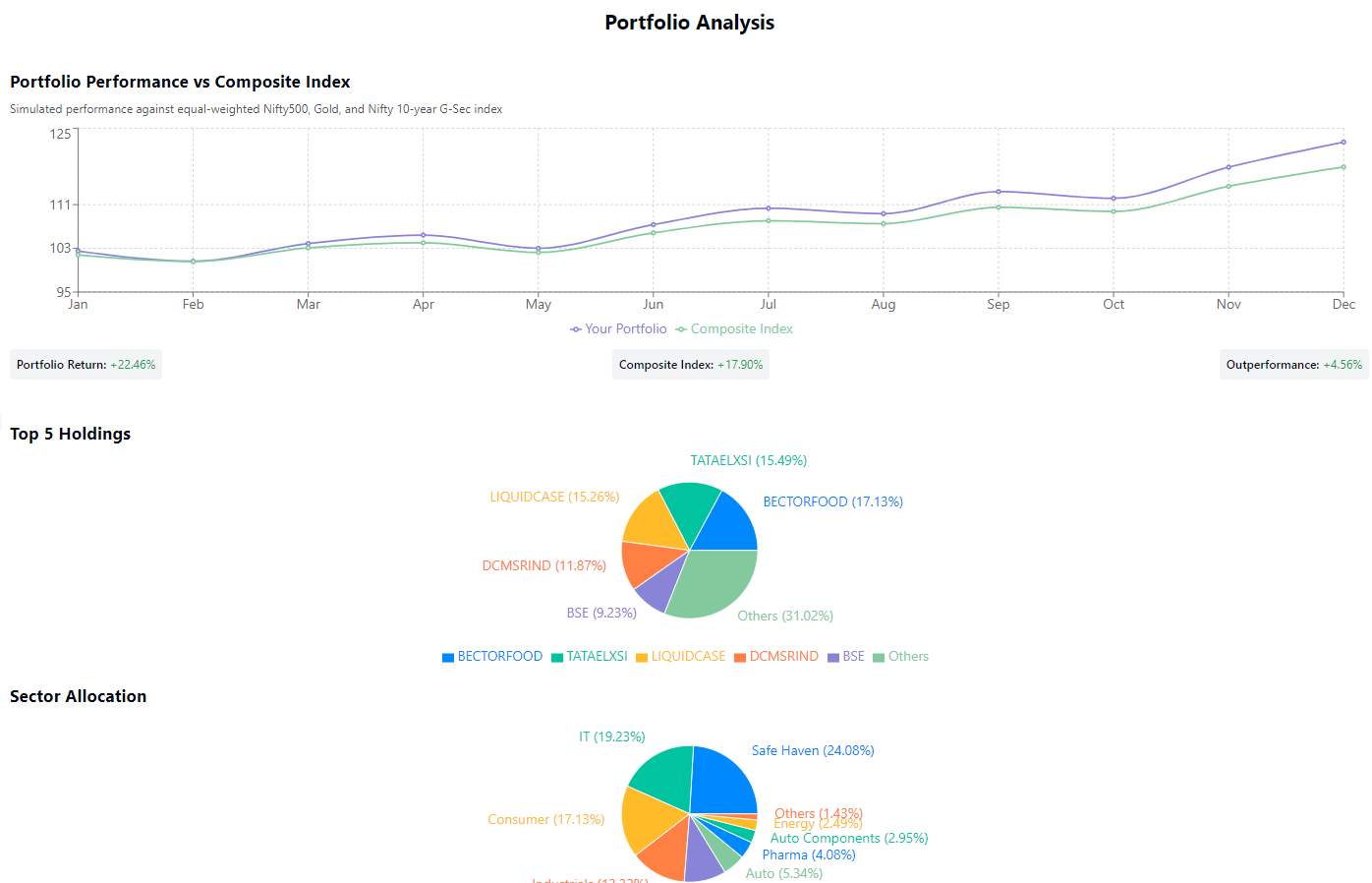
This integration transforms Claude from a generic AI into a personalized financial analyst that knows exactly what you own, what you paid for it, and how your sectors are allocated.
Setting up Kite MCP
- Prerequisites: You will need Node.js installed on your machine and the Claude Desktop app (MCP is currently not supported on the standard web browser version). You also need a Zerodha account; however, the new hosted version of the MCP does not require you to pay for or configure a standalone Kite Connect developer API key.
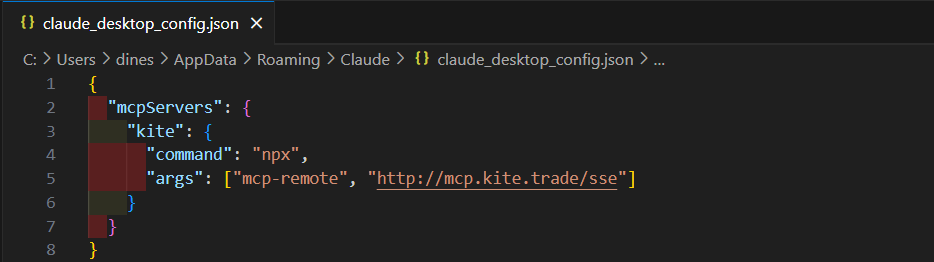
- Configuration: You must add the Kite server to your Claude configuration.
- Open Claude Desktop, go to Settings > Developer > Edit Config.
- In the claude_desktop_config.json file, add the following entry:
JSON
"mcpServers": {
  "kite": {
    "command": "npx",
    "args": ["mcp-remote", "https://mcp.kite.trade/mcp"]
  }
}
- Authorization: Upon your first query (e.g., “Show my holdings”), Claude will generate a unique, secure login link. Clicking this will take you to Zerodha’s official login page. Once you authenticate there, the connection is “handshaked,” and Claude gains temporary access to your data.
Secure Portfolio Analysis
Once the bridge is active, you can move beyond simple data fetching and ask Claude for deep analytical insights using natural language:
- Performance Audits: “Analyze my portfolio: which three stocks are dragging down my overall returns this month?”
- Sector Exposure: “What is my percentage exposure to the IT sector versus Banking? Am I over-diversified?”
- Tax-Loss Harvesting: “Identify any stocks currently in a loss that I could sell to offset my capital gains.”
Security & Privacy: Built-in Safeguards
Zerodha and Anthropic have implemented strict boundaries to ensure your capital remains safe:
- Read-Only by Default: The official hosted MCP (mcp.kite.trade) is designed as a read-only environment. Claude can analyze and suggest, but it cannot execute “Buy” or “Sell” orders without you manually taking action on the Kite app. (Note: Only advanced self-hosted versions support GTT/order placement).
- No Credential Storage: Claude never sees or stores your Zerodha password. The authentication happens entirely on Zerodha’s servers, and Claude only receives a temporary “session token.”
- Consent-Based Access: Every time you start a new session, Claude must re-request permission to use the “Kite Tools,” ensuring the AI isn’t monitoring your account in the background without your knowledge.
Conclusion: The Ultimate Trading Ecosystem
The days of staring at static charts and manually flipping through watchlists are rapidly ending. By bridging Claude Code with TradingView via CDP, you gain an assistant that can build complex PineScript strategies, auto-correct its own code, and scan dozens of markets in seconds to deliver a curated morning brief.
Simultaneously, by connecting the Zerodha Kite MCP to your Claude Desktop, you link your actual financial data to the AI’s reasoning engine. This dual-pronged approach—algorithmic chart reading on the front end and secure portfolio management on the back end—represents the cutting edge of retail trading technology.
Join our community by subscribing to our Weekly Newsletter to stay updated on the latest AI updates and technologies, including the tips and how-to guides.
(Also, follow us on Instagram (@tid_technology) for more updates in your feed and our WhatsApp Channel to get daily news straight to your Messaging App).
