
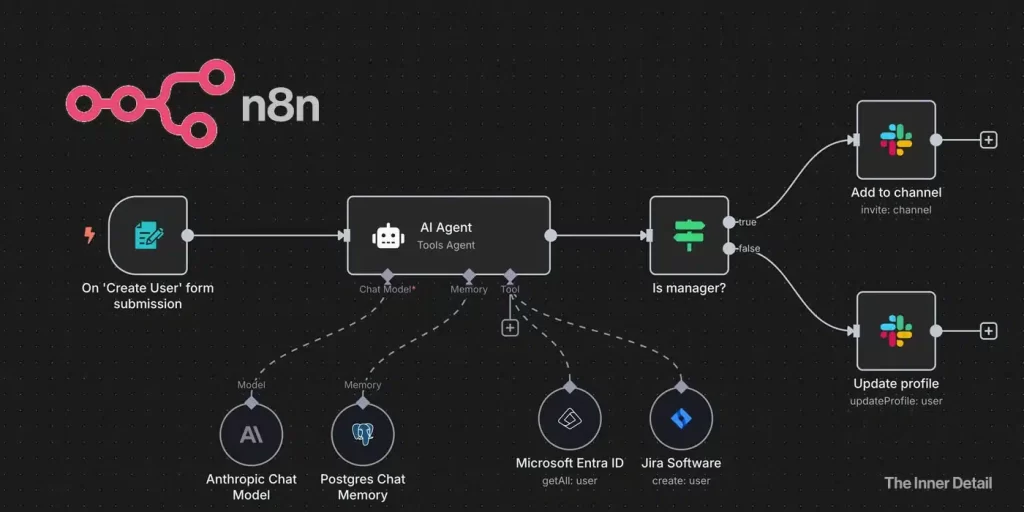
With Docker Desktop installed, n8n running as your automation hub, and Ollama providing local AI model capabilities, you’re now equipped to start building. This section is a continuation of our main module, “How to Build AI Agents for Free?”. This chapter is where the magic truly begins: learning how to design and create the interconnected workflows in n8n that define your AI Agent’s actions and intelligence. We’ll explore the visual nature of n8n and understand how to empower your agents with external tools.
Understanding n8n Workflows
An n8n workflow is essentially a sequence of interconnected “nodes” that perform specific tasks. These nodes can range from triggers that start a workflow, to functional nodes that perform operations, to integration nodes that connect with external services. For an AI Agent, a workflow defines:
- How the agent is triggered: What initiates its activity (e.g., receiving a message, a scheduled time, a web hook).
- How it processes information: How it interacts with AI models (like those running on Ollama) to understand input and generate responses.
- How it performs actions: How it uses various tools to gather information, interact with other applications, or deliver its output.
- Its decision-making logic: How it branches based on conditions or AI output.
The beauty of n8n is its visual drag-and-drop interface, making complex automation accessible without extensive coding.
Creating Your First n8n Workflow
Let’s begin by creating a new, blank workflow in n8n:
- Access n8n: Open your web browser and go to http://localhost:5678. Log in with the credentials you set up during the initial n8n installation.
- Go to Workflows: On the left-hand sidebar, click on “Workflows”.
- Create a New Workflow: Click the “+ New” button (or “New Workflow” button if you’re on an older version) at the top right corner. This will open a blank canvas.
- Add Your First Node (Trigger): Every n8n workflow starts with a “Trigger” node. This defines when your workflow runs.
- Click the “+” icon on the blank canvas or drag from the left sidebar.
- You can either choose a chat-message or a webhook or any other triggers.
- For Chat-message: After you click the ‘+’ icon, you’ll find a side-bar where you can see “On chat message” – click that. A new chat message opens and is ready to take your prompts.
- For Webhook:
- Search for “Webhook” and select the “Webhook” node. This allows your AI Agent to be triggered by incoming HTTP requests (e.g., from a chatbot interface or another application).
- Configure the Webhook node. For a simple test, you can leave the default settings for now. n8n will provide a test URL once saved and activated.
- Add Logic/Functionality Nodes:
- Click the “+” icon extending from your Chat message or Webhook node.
- This is where you’ll add nodes that perform actions. For an AI Agent, a common next step would be to interact with an LLM. While we’ll cover the specific Ollama integration in a later example (the chatbot), conceptually, you’d add a node that sends the webhook’s input to your AI model.
Connecting Ollama to n8n
Initially, you might consider using the “Ollama Chat Model” node directly. However, a workaround is currently more effective:
(Delete Initial Ollama Node (if added): If you initially added the “Ollama Chat Model” node, delete it.)
- Add OpenAI Chat Model Node (as wrapper): Under “Chat Model,” add the “OpenAI Chat Model” node instead. Do not worry, this will not cost you anything or use OpenAI’s services directly in this setup.
- Create New Credential: Click on “Credentials” within the OpenAI Chat Model node and select “Create new credential”.
- Configure Base URL: In the “Base URL” field, you need to replace the default OpenAI endpoint with the Ollama endpoint. Ensure you add /v1 at the end: http://localhost:11434/v1 (Note: if localhost gives an error, try 127.0.0.1:11434 instead).
- Save Credentials: Save the credential. If successful, you will see the models you downloaded on your machine.
- Select Model: From the “Model” list, select llama 3.2, specifically the 3 billion parameter model.
- Test the Agent: You can now open the chat and send a message like “hello.” You should receive a successful response, confirming the agent is working.
Empowering AI Agents with Tools in n8n
The true power of AI Agents lies in their ability to use tools. An LLM alone is powerful for text generation, but it becomes an “agent” when it can interact with the real world – fetching current information, sending emails, updating databases, or controlling other applications. n8n excels at providing these tools.
n8n offers a vast library of pre-built “nodes” that act as tools. These nodes represent integrations with various services and functionalities:
- HTTP Request Node: This is one of the most versatile tools. It allows your AI Agent to make requests to virtually any API on the internet. This is how you’d connect to services that don’t have a direct n8n integration.
- Database Nodes: Nodes for PostgreSQL, MySQL, MongoDB, etc., allow your agent to read from and write to databases.
- Cloud Service Nodes: Integrations with Google Sheets, Slack, Gmail, Trello, Salesforce, and hundreds more, enabling your agent to automate tasks across different platforms.
- Code Node: For when a pre-built node isn’t enough, the “Code” node allows you to write custom JavaScript to perform specific logic or interact with complex APIs.
- Conditional Nodes (IF, Switch): These allow your agent to make decisions and branch its workflow based on the output of an AI model or other data.
The Need for APIs: Integrating External Tools (e.g., Serp API)
Many of these tools, especially those that access external services, rely on APIs (Application Programming Interfaces). An API is a set of rules and protocols that allows different software applications to communicate with each other. When your1 AI Agent needs information from the internet, like current news or search results, it needs to use an API to “ask” a service for that data.
Example: Integrating with SerpAPI for Internet Search
Consider an AI Agent that needs to answer questions about real-time events. An LLM trained on historical data won’t know the latest news. This is where a tool like SerpAPI comes in.
- What is SerpAPI? SerpAPI provides a structured JSON output of Google (and other search engines) search results. Instead of just Browse a webpage, your AI Agent can programmatically request search results and get the information in an easy-to-parse format.
- How it Works (Conceptually in n8n):
- Your n8n workflow receives a user query.
- An LLM (via Ollama) might analyze the query and determine if it requires current information.
- If a search is needed, your workflow would use an HTTP Request node (or a dedicated SerpAPI node if available in n8n’s community integrations) to call the SerpAPI endpoint.
- You would pass the user’s query as a parameter to the SerpAPI call, along with your SerpAPI key for authentication.
- SerpAPI returns the search results in JSON format.
- Your n8n workflow then feeds these search results back to the LLM, prompting it to synthesize an answer based on the retrieved information.
- The LLM generates the final, informed answer, which n8n then delivers back to the user.
This example illustrates how combining n8n’s workflow capabilities with external APIs enables your AI Agent to extend far beyond simple text generation, making it truly intelligent and capable of interacting with dynamic information.
By mastering the creation of workflows and understanding how to leverage n8n’s vast array of nodes and external APIs, you’ll be able to build AI Agents that can automate incredibly diverse and complex tasks.
You’ve now learned the core of n8n workflow creation! In the very next chapter, “How to Create a Simple AI Chatbot Using n8n for Free?“, we’ll put this knowledge into practice by building your first functional AI Agent. Feel free to comment below if you have any doubts or queries!
Key Takeaways
- n8n workflows are built using interconnected nodes to perform specific tasks.
- AI agents can be triggered by various events, including chat messages and webhooks.
- Ollama can be connected to n8n using the OpenAI Chat Model node as a wrapper.
- AI agents can be empowered with tools such as HTTP Request nodes and database nodes.
- APIs, like SerpAPI, enable AI agents to access external services and information.
← Previous Chapter Next Chapter →
Join our community by subscribing to our Weekly Newsletter to stay updated on the latest AI updates and technologies, including the tips and how-to guides. (Also, follow us on Instagram (@inner_detail) for more updates in your feed).
(For more such interesting informational, technology and innovation stuffs, keep reading The Inner Detail).