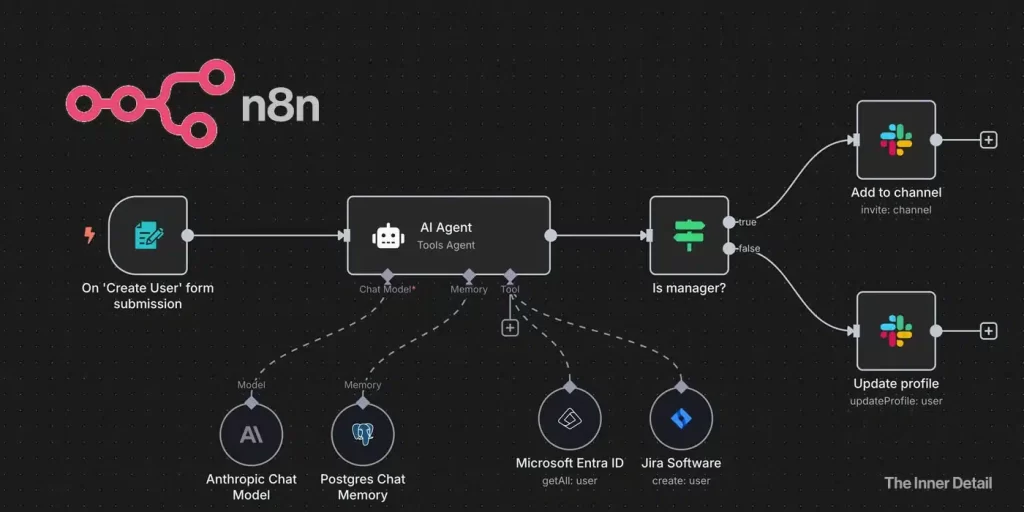
This article will guide you through the detailed process of installing n8n on your PC to build a local AI agent for free. This section is a continuation of our main module, “How to Build AI Agents for Free?”.
The n8n setup allows you to run an AI model, store conversation history, and perform vector searches entirely on your machine, without the need for paid services like an OpenAI account.
The system we will build utilizes n8n for agent creation, Postgres for conversation history and vector search database, and Ollama to run the AI models locally.
Prerequisites for n8n Installation
While our primary method for installing n8n in this module leverages Docker for its simplicity and environment consistency, it’s important to understand the fundamental technology n8n is built upon. If you were to install n8n directly on your system without Docker, its core dependency would be Node.js.
Node.js is a powerful JavaScript runtime that allows you to execute JavaScript code outside of a web browser. n8n is developed using Node.js, and therefore, a compatible Node.js environment is essential for its operation in a non-containerized setup.
For a direct installation of n8n, Node.js is the single required dependency. It bundles npm (Node Package Manager) which is used to install and manage n8n itself.
How to Download and Install Node.js:
To set up Node.js on your system:
- Visit the Official Node.js Website: Go to https://nodejs.org/
- Download the LTS Version: On the homepage, you’ll typically see two download options: “LTS” (Long Term Support) and “Current.” Always opt for the LTS version. LTS releases are stable and recommended for most users and production environments.
- Run the Installer:
- For Windows: Download the .msi installer. Double-click the file and follow the on-screen instructions. Ensure that “Add to PATH” is checked during installation to make Node.js accessible from your command line.
- For macOS: Download the .pkg installer. Open it and proceed through the installation wizard.
- For Linux: The Node.js website provides specific installation commands for various Linux distributions (e.g., Ubuntu, Debian, Fedora, CentOS). Copy and paste the recommended commands for your distribution into your terminal and execute them.
- Verify Installation: After installation, open a new terminal or command prompt and type:
node -v
npm -v
You should see the installed versions of Node.js (n8n typically requires Node.js 18 or above) and npm, confirming a successful installation.
While this module focuses on the Dockerized approach for n8n to streamline setup, understanding that Node.js is its foundational prerequisite provides valuable context to the underlying technology powering your AI Agents.
Installing and Starting n8n
Once all prerequisites are in place, installing n8n is straightforward:
- Open Command Prompt/Terminal: Open your command prompt or terminal again.
- Run the Installation Command: Enter the following command:
- npx n8n start
This command will download n8n and automatically start it (or it will ask you to Press ‘o’, Press it).
- Access n8n: n8n will provide a URL (e.g., http://localhost:5678/). Copy this URL or Ctrl+Click on it to open n8n in your web browser. You will be welcomed to the n8n dashboard.
To Run n8n in the background
When you use npx n8n start directly in the CMD terminal, n8n is running as a foreground process. If you close that terminal, the process is terminated – you can’t access n8n in your browser.
To make n8n run continuously in the background, even after you close your CMD terminal, the recommended and most robust method is to use Docker Compose.
Here’s how you can transition from your current npx setup to a Docker Compose setup:
Step 1: Stop Your Current npx n8n start Process
- Go back to the CMD terminal where npx n8n start is running.
- Press Ctrl + C (Control + C) a few times. It will ask if you want to terminate the batch job. Type Y (for Yes) and press Enter.
- The n8n process should now stop.
Step 2: Ensure Docker Desktop is Installed and Running
If you don’t have Docker Desktop installed, you’ll need to install it first.
- Download and Install Docker Desktop: Go to https://www.docker.com/products/docker-desktop/ and follow the installation instructions for Windows.
- Start Docker Desktop: Once installed, launch Docker Desktop. It needs to be running in the background for Docker commands to work. You’ll usually see the Docker whale icon in your system tray.
Step 3: Create a docker-compose.yml File
This file tells Docker how to set up and run your n8n container in the background.
- Choose a directory: Create a dedicated folder for your n8n setup (e.g., C:\n8n).
- Create docker-compose.yml: Inside that folder, create a new text file named docker-compose.yml (make sure the extension is .yml, not .txt).
- Paste the following content into docker-compose.yml:
version: '3.8'
services:
  n8n:
    image: n8nio/n8n # Uses the official n8n Docker image
    restart: always  # IMPORTANT: This ensures n8n automatically restarts if it crashes or after a system reboot
    ports:
      - "5678:5678" # Maps port 5678 on your computer to port 5678 in the container
    environment:
      - N8N_HOST=localhost # Access n8n locally via http://localhost:5678
      - N8N_PORT=5678
      - N8N_PROTOCOL=http
      # - N8N_WEBHOOK_URL=https://your.domain.com/ # <--- UNCOMMENT AND SET FOR WEBHOOKS/TRIGGERS IN PRODUCTION
      # - N8N_EDITOR_BASE_URL=https://your.domain.com/ # <--- UNCOMMENT AND SET FOR EDITOR ACCESS IN PRODUCTION
      # - N8N_BASIC_AUTH_ACTIVE=true # <--- UNCOMMENT TO ENABLE BASIC AUTH FOR SECURITY
      # - N8N_BASIC_AUTH_USER=your_username # <--- SET YOUR USERNAME IF BASIC AUTH ACTIVE
      # - N8N_BASIC_AUTH_PASSWORD=your_password # <--- SET YOUR PASSWORD IF BASIC AUTH ACTIVE
    volumes:
      - ~/.n8n:/home/node/.n8n # Persists your workflow data outside the container
    networks:
      - n8n_network
networks:
  n8n_network:
    driver: bridge
Important Considerations for the docker-compose.yml:
- restart: always: This is key for persistence. If your computer restarts or the n8n container crashes, Docker will automatically try to restart it.
- volumes: – ~/.n8n:/home/node/.n8n: This line is crucial! It tells Docker to store your workflow data (workflows, credentials, settings) outside the container on your computer’s hard drive. This means if you update n8n or recreate the container, your data is safe. The ~/.n8n typically maps to C:\Users\YourUser\.n8n on Windows.
- Webhook URL (N8N_WEBHOOK_URL): For few triggers like Telegram, you’ll need to set this to a public HTTPS URL (like an Ngrok tunnel or a domain name on a VPS). For now, while setting it up, you can keep it commented out.
Step 4: Start n8n using Docker Compose in Detached Mode
- Open a new CMD terminal.
- Navigate to the directory where you saved your docker-compose.yml file:
cd C:\n8n
(Or whatever directory you created)
- Start n8n in detached mode:
docker-compose up -d
- up builds and starts the services defined in docker-compose.yml.
- -d means “detached” – it will run in the background, freeing up your terminal.
- Verify n8n is running:
docker ps
You should see an entry for n8n with a “Up” status.
- Access n8n: Open your web browser and go to http://localhost:5678. Your n8n instance should now be accessible.
Now, you can close your CMD terminal, and n8n will continue to run in the background. If you ever need to stop it, go back to your C:\n8n directory in CMD and run:
docker-compose down
This will stop and remove the n8n container (but your data in ~/.n8n will remain safe).
With n8n now ready, your environment is taking shape! Prepare to unlock the power of AI Agents in the next section as we guide you through creating a functional workflow in n8n. If you have any doubts or queries, feel free to leave a comment below.
Key Takeaways
- n8n allows you to build AI agents locally without relying on paid services.
- Docker Compose is the recommended method for running n8n in the background persistently.
- The
docker-compose.ymlfile configures how n8n runs in a Docker container. - The
restart: alwayssetting ensures n8n automatically restarts if it crashes or after a system reboot. - The
volumessetting persists your workflow data even if the container is recreated.
← Previous Chapter Next Chapter →
Join our community by subscribing to our Weekly Newsletter to stay updated on the latest AI updates and technologies, including the tips and how-to guides. (Also, follow us on Instagram (@inner_detail) for more updates in your feed).
(For more such interesting informational, technology and innovation stuffs, keep reading The Inner Detail).