
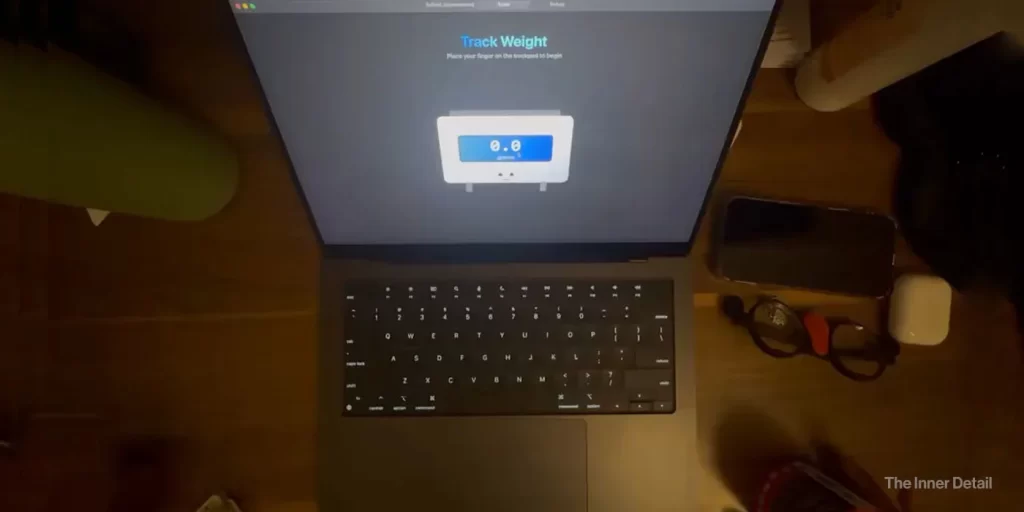
Ever wondered if your high-tech MacBook could do more than just compute? Prepare to be amazed! Thanks to an innovative application called TrackWeight, you can transform your MacBook’s trackpad into a precise digital weighing scale.
This capability leverages the Force Touch pressure sensors built into modern MacBook trackpads, offering a fascinating glimpse into the hidden potential of your device.
What is TrackWeight?
TrackWeight is a macOS application designed to turn your MacBook’s trackpad into an accurate digital weighing scale. It’s a clever utility that utilizes hardware already present in many MacBooks to perform a task far beyond its typical design. The project is available on GitHub under an MIT license and has gained significant attention, with 6.7k stars and 280 forks.
The core of TrackWeight’s functionality lies in the Force Touch trackpad’s pressure sensors. The application uses a custom fork of the Open Multi-Touch Support library by Takuto Nakamura to gain private access to detailed touch data, including pressure readings that are usually inaccessible to standard applications.
The ingenious part is that these pressure readings are only generated when capacitance is detected on the trackpad surface, meaning your finger or another conductive object must be in contact. When this condition is met, the Force Touch sensors provide precise pressure readings which, surprisingly, are already provided in grams from the MultitouchSupport data. The app then calibrates and converts these readings into weight measurements. The application itself is built using SwiftUI for the user interface and Combine for reactive data flow.
What You Need: Requirements for TrackWeight
To unleash this hidden capability of your MacBook, you’ll need a few things:
- macOS 13.0+ (Ventura or later)
- A MacBook with a Force Touch trackpad (this includes 2015 or newer MacBook Pro models, and 2016 or newer MacBook models).
- App Sandbox disabled: This is crucial for the application to gain the necessary low-level access to the trackpad.
- (For developers) Xcode 16.0+ and Swift 6.0+ if you plan to build it from source.
Getting Started: Installation
There are a few ways to install TrackWeight:
- Option 1: Download DMG (Recommended)
- Go to the Releases page.
- Download the latest TrackWeight DMG file.
- Open the DMG and drag TrackWeight.app to your Applications folder.
- Run the application (you might need to allow it in System Preferences > Security & Privacy for unsigned builds).
- Option 2: Homebrew
- Open your terminal and run: brew install –cask krishkrosh/apps/trackweight –force.
- Option 3: Build from Source
- Clone the GitHub repository.
- Open TrackWeight.xcodeproj in Xcode.
- Disable App Sandbox in the project settings (this is required for trackpad access).
- Build and run the application.
You may also like this: Your Apple Logo at the back of your iPhone is a Secret Button: Here is how to use it
How to Use Your New MacBook Scale
Once installed, using TrackWeight is straightforward:
- Open the TrackWeight application.
- Rest your finger lightly on the trackpad. This is essential as the trackpad requires capacitance (finger touch) to generate pressure readings.
- Scale it to zero.
- While maintaining finger contact, carefully place the object you wish to weigh on the trackpad.
- Try to put as little additional pressure on the trackpad with your finger as possible while still maintaining contact; the displayed reading will be the weight of your object.
Important Limitations to Note
While incredibly cool, TrackWeight has some limitations to keep in mind:
- Finger Contact Required: You absolutely cannot weigh objects directly without maintaining finger contact on the trackpad, as pressure readings only occur with capacitance detection.
- Surface Contact: Objects must be placed in a way that doesn’t interfere with the required finger contact.
- Metal Objects: Metal objects might be detected as a finger touch. For accurate readings with metal items, you may need to place a non-conductive material like a piece of paper or cloth between the object and the trackpad.
A Fun, Educational Tool (with a Disclaimer!)
TrackWeight is an experimental and educational tool. While calibration efforts have been made to ensure accuracy against conventional digital scales, it’s crucial to understand that TrackWeight should not be used for critical measurements or commercial applications where high precision is essential. Always verify measurements with a calibrated scale for important use cases.
So go ahead, give it a try and discover the surprisingly practical side of your MacBook’s trackpad!
Key Takeaways
- TrackWeight transforms your MacBook’s trackpad into a digital scale.
- It requires a Force Touch trackpad and disabling App Sandbox.
- Finger contact is essential for accurate readings.
- It’s an educational tool, not for critical measurements.
Join our community by subscribing to our Weekly Newsletter to stay updated on the latest AI updates and technologies, including the tips and how-to guides. (Also, follow us on Instagram (@inner_detail) for more updates in your feed).
(For more such interesting informational, technology and innovation stuffs, keep reading The Inner Detail).
