
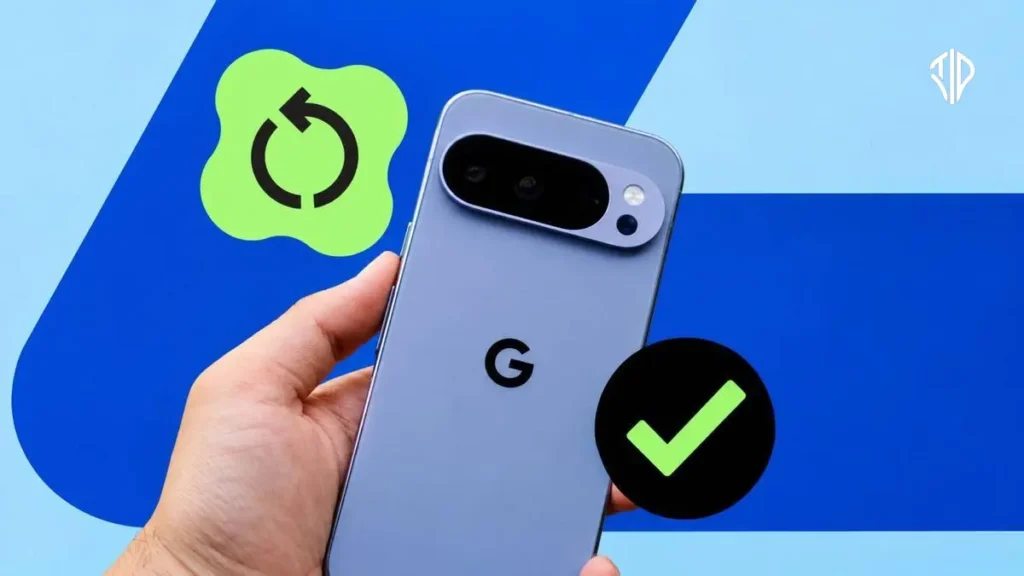
Waiting for a newly released software update to land on your smartphone can test anyone’s patience, especially when Google rolls out its monthly patches and feature drops in gradual phases. If you prefer not to wait for the automatic notification according to recent reports, you can take matters into your own hands by flashing the official update package directly.
Google makes full over-the-air update files publicly accessible as downloadable ZIP archives immediately upon release. This manual approach gives advanced and eager users instant access to the newest security patches and feature enhancements without depending on carrier or regional queue schedules.
Understanding the Manual Update Process
Using a computer and a USB cable to update your phone might sound intimidating to beginners, but the procedure is structured and reliable. Google officially hosts these packages for every supported hardware iteration.
The core mechanism relies on Android Debug Bridge, commonly known as ADB, which is a versatile command-line tool allowing communication between a desktop machine and an Android device. Once configured properly, it serves as a reliable bridge to push software packages straight into the phone’s recovery environment.
Preparation and Prerequisites
Before initiating any manual update procedure, you need to gather a few essential tools and set up your computer environment. Ensure you have a Windows, macOS, or Linux computer alongside a reliable USB data cable.
First, navigate to Google’s official developer portal to download the exact OTA ZIP file matching your specific Pixel model number and current build identifier. Selecting an incorrect file will cause the verification check to fail, safeguarding your device from accidental bricking.
Next, verify that ADB and Fastboot utilities are installed on your desktop operating system. If you haven’t used these tools before, lightweight standalone installers can be obtained quickly from developer resource platforms.
Configuring Your Pixel Device
Enabling communication between your computer and smartphone requires a quick trip through the Android system settings menu. Open your settings application, scroll to the bottom, and select the about phone section.
Locate the build number entry and tap it repeatedly seven times until a prompt confirms that developer options have been unlocked. Return to the main settings hierarchy, enter the system menu, and open developer options to enable USB debugging.
Connecting Your Hardware
Plug your Pixel into your computer using the USB cable and open your preferred command-line interface or terminal window. Type the device connection verification command to test the hardware handshake.
Your phone screen will display a security prompt asking you to authorize the incoming computer connection via RSA fingerprint verification. Accept this permission request to ensure the terminal can interface successfully with the recovery environment.
Executing the Sideload Procedure
Reboot your smartphone into recovery mode by issuing the designated restart command through your terminal window. When the graphic showing an Android robot with a warning sign appears, hold down the power button and click the volume up key once to reveal the system recovery options.
Navigate using the hardware volume keys to highlight the apply update from ADB option, then press the power button to confirm your selection. Your device is now waiting for the transfer package from the connected computer.
Transferring and Installing the Package
Return to your computer terminal and enter the sideload command followed by the precise file path of the downloaded update ZIP archive. The desktop utility will begin transferring the package chunks to your phone memory.
The system verifies the cryptographic signature of the file automatically before beginning the installation routine. This verification step ensures that corrupted or tampered files cannot compromise your operating system integrity.
Data Safety and Preservation
One common worry associated with manual software flashing is the fear of losing personal documents, photographs, and installed applications. Fortunately, applying official full OTA images through standard recovery sideloading does not require unlocking the bootloader.
Because the bootloader remains locked during this procedure, your personal data partition is left completely untouched. Your device retains all app caches, account logins, and media files just as it would during a standard automatic background update.
Post-Update Verification
Once the installation progress bar reaches completion, the recovery interface returns to the main menu automatically. Use the volume rocker to select the reboot system now command and press the power button.
Your Pixel will restart normally into the freshly updated operating system environment. You can check the Android version details in your settings menu to confirm that the latest security patch or feature drop is active.
Key Takeaways
- Google provides direct downloadable OTA ZIP files for manual updates to bypass carrier queues.
- ADB (Android Debug Bridge) and USB debugging are essential tools required to push updates via the recovery environment.
- Manual sideloading preserves all personal files and app data because it does not require unlocking the bootloader.
- Verifying the correct model number and build identifier prevents installation errors and device bricking.
Join our community by subscribing to our Weekly Newsletter to stay updated on the latest AI updates and technologies, including the tips and how-to guides.
(Also, follow us on Instagram (@tid_technology) for more updates in your feed and our WhatsApp Channel to get daily news straight to your Messaging App).
