
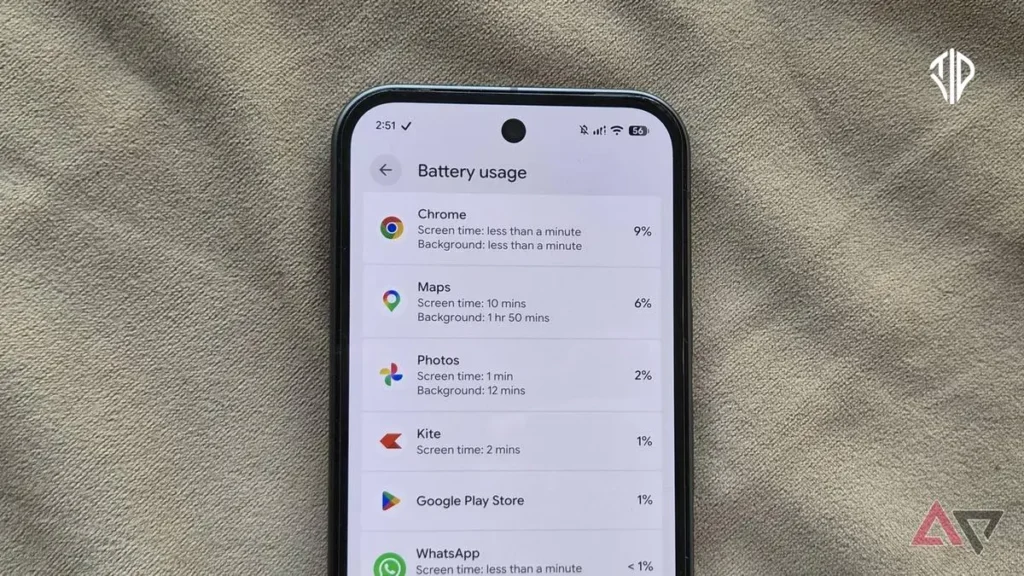
Using GPS navigation on a smartphone is one of the most demanding tasks you can ask your device to handle. According to recent reports, many users notice their phone batteries dropping by a significant percentage after just one extended drive. Google Maps requires constant hardware rendering, active GPS polling, and cellular data fetching, which combine to generate noticeable thermal and electrical load.
Fortunately, you do not need to suffer through premature battery depletion or keep your phone permanently plugged into a car charger. By adjusting a few hidden preferences and optimizing how the application interacts with your hardware, you can slash power consumption during your daily commute or road trips. Here are the most effective strategies to keep your battery level stable while using navigation apps on Android.
Switch from satellite view to default rendering
The satellite imagery layer in mapping applications offers impressive real-world photographic details of buildings and terrain. While this perspective is useful for scouting unfamiliar destinations, it forces your phone graphics processor to work much harder. Rendering high-resolution aerial photography continuously consumes significantly more power than drawing flat vector graphics.
You can easily switch back to the standard interface by tapping the layers icon in the upper-right corner of your navigation screen and selecting default mode. If you occasionally need to inspect a complex interchange from above, you can temporarily toggle satellite imagery on and then revert to default graphics once you have your bearings.
Enforce permanent dark mode themes
Modern smartphone displays, particularly OLED and AMOLED screens found on most Android devices, illuminate individual pixels dynamically. When a pixel displays true black, it remains completely powered off, consuming zero electricity.
By default, mapping applications often match your system theme or switch automatically between day and night palettes based on local sunrise and sunset times. You can force the application into a permanent dark theme by tapping your profile icon, navigating to settings, selecting app and display, and choosing always in dark theme. Additionally, ensure your navigation color scheme is explicitly locked to the night setting for maximum power savings.
Navigate with your screen turned off
If you are traveling along a familiar highway or following a route with straightforward instructions, keeping your display illuminated for miles at a time is unnecessary. Relying primarily on voice guidance allows you to lock your phone screen entirely while still receiving prompt turn-by-turn directions through your vehicle audio system.
This approach eliminates the largest single power draw of mobile navigation, which is maintaining high screen brightness. You can always wake your display briefly by tapping the screen or pressing the hardware power button if you need to visually confirm your upcoming turn or view traffic conditions ahead.
Restrict background location access
Many applications request permission to track your physical location at all times to support background features like timeline generation or passive location sharing. If you do not actively use these continuous tracking utilities, allowing constant location polling wastes precious battery cycles in the background.
You can optimize this behavior by navigating to your system application info page, selecting permissions, choosing location, and changing the setting to allow only while using the app. This simple restriction ensures the GPS module only activates when the mapping software is actively open on your screen, protecting your battery without breaking core navigation functionality.
Download regional offline maps
Downloading geographical regions for offline use is traditionally recommended for travelers with spotty cellular coverage or limited data plans. However, offline maps also serve as a powerful tool for energy conservation.
When your phone stores map data locally in internal storage, the modem does not need to continuously download map tiles over cellular networks. To save a region, tap your profile icon, select offline maps, choose your own map area, and download the data file to your device before your trip begins.
Key Takeaways
- Switch from satellite rendering to standard vector graphics to reduce GPU workload.
- Enable permanent dark mode on OLED and AMOLED screens to power off black pixels.
- Lock your screen during straightforward route segments and rely purely on voice navigation audio.
- Limit background location permissions so GPS only runs while the app is active.
- Download regional offline maps to prevent constant cellular data fetching and modem load.
Join our community by subscribing to our Weekly Newsletter to stay updated on the latest AI updates and technologies, including the tips and how-to guides.
Also, follow us on Instagram (@tid_technology) for more updates in your feed and our WhatsApp Channel to get daily news straight to your Messaging App.
