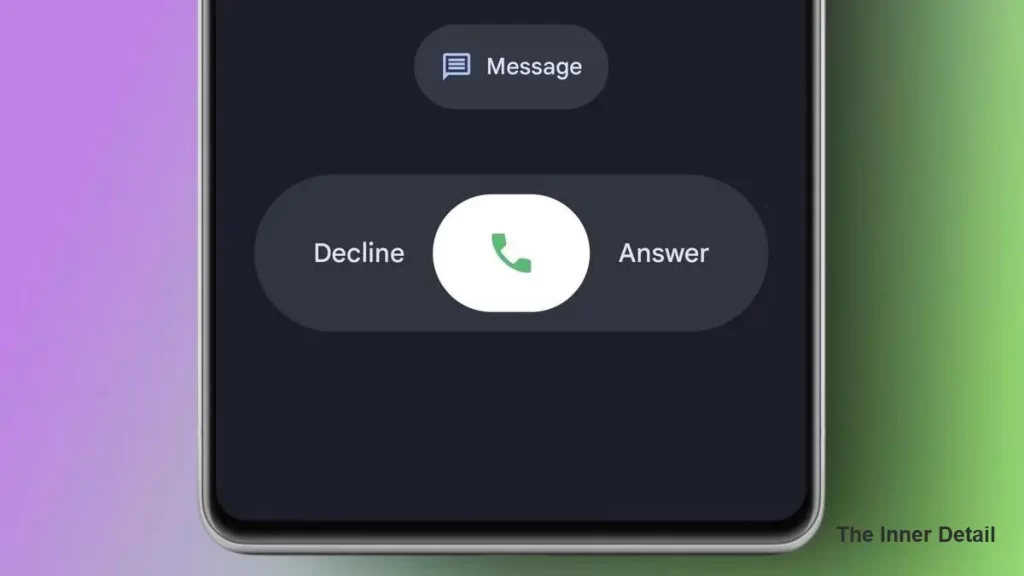
Google’s continuous evolution of its Android ecosystem often brings exciting new features and a refreshed aesthetic, but sometimes, these updates can feel less like an enhancement and more like a disruption. This holds especially true for core applications like the Google Phone Call UI. For many users, the recent shift to a new Material Design UI, complete with altered call gestures and a revised layout, has been a source of genuine frustration.
The human brain thrives on routine, and our interaction with smartphones is no exception. Years of muscle memory dictate how we instinctively answer calls, navigate our contacts, and end conversations. A sudden overhaul of the calling interface can throw this familiar rhythm into disarray, leading to accidental hang-ups, fumbled interactions, and a general feeling of being less in control. This challenge is particularly acute for users who aren’t as tech-savvy, such as parents or older relatives, who simply want their phone to work as reliably and predictably as it always has.
Social media platforms have been buzzing with discussions and even humorous memes highlighting these pain points. The core issue? The new design, while visually modern, often sacrifices intuitive accessibility. Key features, like direct access to contact lists, might feel less prominent, and the learning curve for new gestures can be surprisingly steep. If you or someone you know is yearning for the comfort and familiarity of the classic Google Phone UI, you are in luck. This guide will walk you through the steps to reclaim that familiar experience and offer a practical workaround.
The UI Dilemma: When Change Isn’t Always Welcome
Why do these UI updates often cause such a stir? It boils down to several factors:
- Muscle Memory Disruption: For years, users have developed ingrained habits for interacting with their phone. A new gesture to answer a call or a different placement for the hang-up button can feel deeply unnatural.
- Reduced Intuitiveness: While new designs aim for simplicity, they can sometimes make common actions less obvious for long-time users. What was once a single tap might now require a swipe or a different sequence.
- Accessibility Concerns: Older users or those with motor skill challenges might find new, more complex gestures difficult to execute reliably.
- Loss of Familiarity: There’s a certain comfort in the familiar. When an essential app drastically changes its appearance and functionality, it can feel like losing a dependable tool.
Bringing Back the Familiar: Your Step-by-Step Guide
If you’ve recently experienced an update to the Google Phone app and wish to revert to its previous, more familiar interface, follow these steps carefully:
- Open the Google Play Store: Launch the Play Store app on your Android smartphone.
- Access Settings: Tap on your profile icon, typically located in the top-right corner of the screen. From the menu that appears, select “Settings.”
- Manage Network Preferences: Within the Settings menu, navigate to “Network preferences” and then tap on “Auto-update apps.”
- Disable Auto-Updates (Temporarily): Select the option “Don’t auto-update apps.” This crucial step prevents the Google Phone app from automatically updating itself back to the new UI after you revert it. It’s important to note that disabling auto-updates for all apps is generally not recommended for long-term security and feature updates. Consider enabling it again after you’ve successfully reverted the Phone app, though this may require repeating these steps if the app updates again.
- Search for Google Phone: Go back to the main Play Store interface and use the search bar to find “Google Phone” (or simply “Phone”).
- Uninstall Updates: Tap on the Google Phone app in the search results. You should see an “Uninstall updates” button. Tap this button. This action will revert the app to its original, factory-installed version, which typically features the older UI.
- Clear Cache and Data: Before opening the Phone app, it’s a good practice to clear its cached data. Go to your phone’s main “Settings” app, then navigate to “Apps” (or “Apps & notifications”). Find and tap on “Phone” (the Google Phone app). Select “Storage” (or “Storage & cache”) and then tap on “Clear cache” and “Clear data.” This ensures a clean slate for the reverted app.
Now, when you open the Google Phone app, you should be greeted by the old dialer, complete with its familiar UI and gestures.
A Smarter Approach: Leveraging OEM Dialers
While reverting the Google Phone app offers an immediate solution, disabling auto-updates globally or even just for one app isn’t always the ideal long-term strategy. It can leave your device vulnerable to security flaws or prevent you from receiving beneficial feature enhancements for other applications.
A more robust and sustainable workaround, if available on your device, is to utilize a secondary call (dialer) app provided by your smartphone’s manufacturer (OEM). Many Android phones, especially those from brands like Samsung, Xiaomi, OnePlus, or realme, come with their own pre-installed ‘calling’ apps in addition to or instead of Google’s.
To make an OEM dialer your default:
- Check for an OEM Dialer: Look for another “Phone” or “Dialer” app icon on your home screen or in your app drawer. It might have a slightly different icon or branding from Google’s default.
- Set as Default: Go to your phone’s “Settings” > “Apps” (or “Apps & notifications”) > “Default apps” (or “Choose default apps”).
- Change Phone App: Tap on “Phone app” and select your OEM’s dialer from the list.
By setting an OEM dialer as your default, you get a stable, potentially familiar interface without needing to disable critical app updates. This offers a “set it and forget it” solution that often aligns better with long-term device maintenance.
Important Considerations
While these methods help bring back your preferred UI, remember that technology is constantly evolving. Google may eventually push updates that make reverting more difficult or introduce new features that make the old UI feel truly outdated. Always weigh the comfort of familiarity against the benefits of new features, security patches, and ongoing improvements that come with updated software.
Whether you choose to revert the Google Phone app or switch to an OEM alternative, the goal is to enhance your daily smartphone experience. Technology should serve us, not frustrate us, and sometimes, that means holding onto the interfaces that simply work best for our individual needs.
Join our community by subscribing to our Weekly Newsletter to stay updated on the latest AI updates and technologies, including the tips and how-to guides. (Also, follow us on Instagram (@inner_detail) for more updates in your feed). (For more such interesting informational, technology and innovation stuffs, keep reading The Inner Detail).